
Use order taggingUpdated 21 hours ago
Order tagging in Blueprint
Blueprint can automatically add tags to orders based on the personalisation a customer selects. You can turn this on at three different levels inside a template:
Template level — tag the order when it contains a product using that template
Product option level — tag the order when a specific product option is selected
Option value level — tag the order when a specific option value is selected
INFO
The tag text is taken from the item where tagging is enabled. Blueprint uses the template name, option name, or option value as the order tag.
How order tagging works
When a customer places an order for a product that uses Blueprint personalisation, Blueprint checks whether tagging has been enabled in the template.
If tagging is enabled for the template, the order gets a tag matching the Template Name.
If tagging is enabled for a product option, the order gets a tag matching the Option name.
If tagging is enabled for an option value, the order gets a tag matching that specific option value.
You can use these tags in Shopify to help with fulfilment, filtering, internal workflows, or identifying orders that need a particular treatment.
NOTE
If more than one tagging rule applies to the same order, the order can receive multiple tags.
Enable order tagging at template level
Use template-level tagging when you want every order for products attached to a template to receive the same tag.
1. Open the template - In the Blueprint app, go to Templates and open the template you want to update.
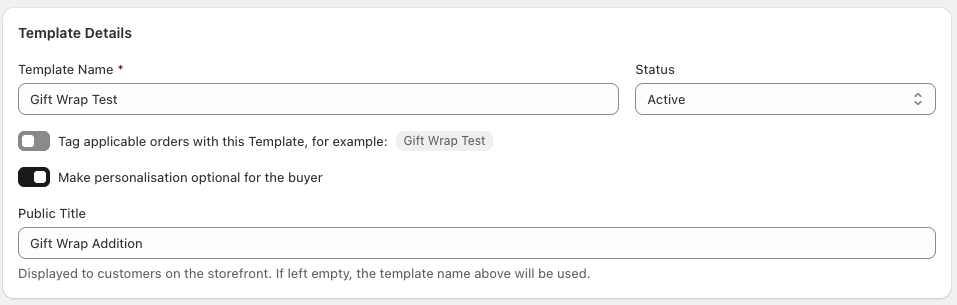
2. Find Template Details - At the top of the template, locate the Template Details section.
3. Turn on template tagging - Enable the toggle labelled Tag applicable orders with this Template. The example tag shown beside the toggle uses the current Template Name.
4. Save the template - Save your changes so tagging is applied to future orders.

If this setting is enabled, any order containing a product attached to that template will be tagged with the template name.
Enable order tagging at product option level
Use product option-level tagging when you want to tag orders based on whether a particular option was selected, such as gift wrap or rush production.
1. Open the option editor - From the template's Product Options area, open the product option you want to edit.
2. Find order tagging - In the Edit Product Option panel, scroll to the Order Tagging section.
3. Turn on product option tagging - Enable the toggle labelled Tag applicable orders with this Product Option. The example tag uses the current Option name.
4. Save the option - Click Save so the updated option tagging rule is applied.

If this setting is enabled, Blueprint tags the order when that product option has been selected as part of the customer's personalisation.
Enable order tagging at option value level
Use option value-level tagging when only one specific value should create a tag. This is useful when an option has several values, but only some of them need special handling.
1. Edit the option - Open the relevant product option from the template.
2.Go to option values - Scroll to the Option Values section and find the value you want to tag.
3. Open advanced options - Open Advanced options for that value.
4. Turn on option value tagging - Enable the toggle labelled Tag applicable orders with this Option Value. The example tag uses that specific option value.
5. Save the option - Click Save to apply the change.
If this setting is enabled, the order is tagged only when that specific option value is selected.
When to use each tagging level
Template level
Use this when every order using the template should be easy to identify in Shopify.
Example: A template called Gift Wrap Test adds the tag Gift Wrap Test to all matching orders.
Product option level
Use this when the presence of an option matters, regardless of which value was chosen.
Example: A product option called Gift Wrap adds the tag Gift Wrap when that option is selected.
Option value level
Use this when only one value needs special handling.
Example: An option value called Gift Wrap Option Value adds that tag only when that exact value is chosen.
Best practices
Use clear names for templates, options, and values, because those names become the order tags.
Keep tag names consistent so they are easy to filter in Shopify.
Use template-level tags for broad workflows and option value-level tags for more specific fulfilment rules.
Test your template on a product and place a test order to confirm the expected tags are added.
TIP
If your team relies on Shopify order filters, naming options clearly in Blueprint will make tagged orders much easier to find later.
Things to check if tags are missing
Q. The order was not tagged
A. Check that the correct toggle was enabled and that you saved the template or option after making the change.
Q. The wrong tag was added
A. Review the Template Name, Option name, or the option value text. Blueprint uses those names as the tag content.
Q. I need more specific tags
A. Move the tagging rule lower in the setup. Template-level tags are broad, product option-level tags are more specific, and option value-level tags are the most precise.